

Top 5 SharePoint Workflow Types That Improve Business Procedures
Running a business means managing many tasks every day. Approvals, document reviews, notifications, and feedback can take a lot of time. Teams often face delays, mistakes, and confusion.
SharePoint workflows can help businesses in these situations. Routine tasks are automated, procedures are accelerated, and mistakes are decreased. Teams may stop chasing approvals and concentrate on critical work.
SharePoint workflows may help businesses save up to 30% of their time on document management and approvals. Decisions are made more quickly, teamwork is facilitated, and errors are reduced.
This article will focus on the five most common types of SharePoint workflows. Each workflow’s operation and potential to enhance your company procedures will be highlighted. You’ll know which workflows can save your team time and effort in the end.
Why SharePoint Workflows Matter
Many businesses face slow approvals, missed deadlines, and document errors. These problems waste both time and money. They also create frustration among employees.
SharePoint workflow automation helps solve these problems. They automate repetitive tasks. This means work moves faster and with fewer mistakes. Teams can see the status of tasks in real-time. Managers can track approvals and reviews easily.
Here are a few reasons SharePoint workflows are important:
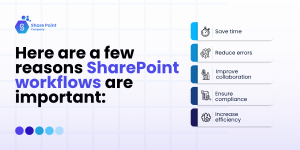
- Save time: Tasks that took hours can now be done in minutes.
- Reduce errors: Automation makes sure every step is done correctly.
- Improve collaboration: Teams always know who should act next.
- Ensure compliance: Workflows keep a record of all actions for audits.
- Increase efficiency: Employees can focus on important work, not repetitive tasks.
With these benefits, businesses can make smarter decisions. They can meet deadlines and keep work running smoothly.
Top 5 SharePoint Workflow Types That Improve Business
Now that we know why SharePoint workflows matter, let’s see the main types. Each workflow type helps business processes in a different way. Some speed up approvals. Others improve document management or notifications.

Selecting the best workflow for your team might be made easier if you are aware of them. They may keep work organized, save time, and cut down on errors.
1. Approval Workflows
Approval workflows send requests to the right people. They track decisions and make sure every request is approved or denied correctly.
When to use: Use these workflows for purchase orders, leave requests, contracts, or any process that needs formal approval.
How it works:
- An employee submits a request.
- The request is forwarded to the designated approver or approvers via the procedure.
- Approvers have the ability to accept, reject, or request modifications.
- The decision is automatically communicated to the requester.
Benefits:
- Speeds up approvals by eliminating emails that are exchanged back and forth.
- Maintains an accurate record of every choice made for audits.
- Minimizes errors brought on by omitted approvals.
Real-life example: By implementing an approval procedure, a finance team may save the time it takes to approve purchase orders by as much as 30%.
2. Document Review & Publishing Workflows
Document review and publishing workflows help teams manage documents and reports easily. They assign reviewers, collect edits, and track versions. This makes sure documents are correct before they are published.
When to use: Use these workflows for marketing content, policy documents, manuals, or any files that need several reviews before release.
How it works:
- A document is sent for review.
- Reviewers can accept modifications or make comments after receiving an automated notification.
- Every edit and version is tracked by the process.
- The document is published in the appropriate place after approval.
Benefits:
- Minimizes errors by monitoring versions and modifications.
- Speeds up reviews by sending out automated alerts.
- Helps teams, including those working remotely, collaborate more easily.
Real-life example: By adopting this strategy, a marketing team may double the speed at which they deliver content. They have superior version control and commit fewer errors.
3. Notification & Alert Workflows
When anything significant occurs, notification and alert procedures automatically notify the appropriate parties. By doing this, teams may keep informed without having to do manual checks.
When to use: When there are deadlines, file submissions, task assignments, or any other situation that calls for prompt response.
How it works:
- A trigger event, such as the creation of a task or the uploading of a new file, occurs.
- The workflow sends notifications through email, Teams, or mobile alerts.
- Recipients receive all the details they need to act quickly.
Benefits:
- Keeps teams informed at all times.
- Less work and deadlines are missed.
- Makes accountability and communication better.
Real-life example: A project team using notification workflows can prevent task delays. Everyone knows exactly when they need to take action.
4. Feedback & Survey Workflows
Feedback and survey workflows collect opinions, suggestions, or survey responses automatically. They make it easy to get information from employees, clients, or stakeholders.
When to use: Use these workflows for training feedback, product surveys, event evaluations, or any process that needs input from several people.
How it works:
- A survey or feedback form is sent automatically to the chosen group.
- Participants fill out their responses.
- For ease of evaluation, the workflow compiles and arranges the responses.
- To monitor trends and insights, reports can be generated.
Benefits:
- Saves time when compared to manual data collection.
- Ensure that the survey is sent on time to everyone.
- Provides prompt insights to enhance choices or procedures.
Real-life example: A company using this workflow can collect employee training feedback within 24 hours. They can take immediate action to improve programs.
5. Custom / State-Machine Workflows
Complex business processes are handled by state-machine or custom workflows. They are capable of managing several branches, phases, and exceptions. These processes are adaptable to many circumstances.
When to use: Make use of these workflows for procedures that link to other systems, such as ERP or CRM, managing exceptions, or multi-departmental approvals.
How it works:
- A trigger, such a request or the submission of a document, starts the workflow.
- It progresses through several phases according to choices or circumstances.
- Tasks can be routed to different teams or systems automatically.
- The workflow tracks every step and records outcomes for auditing.
Benefits:
- Handles complicated processes without confusion.
- Reduces mistakes in tasks with many steps.
- Tracks progress and keeps a clear record for audits.
Real-life example: A company using custom workflows can handle complex contract approvals across many departments. They don’t lose track of any step.
Implementation Best Practices for SharePoint Workflows
Setting up SharePoint workflows the right way makes them work better. By adhering to best practices, mistakes are decreased and operations remain seamless. The following are some crucial pointers:
First, map the process
- Make a list of each stage in your process before developing a workflow.
- Determine who is in charge of each task and what choices are required.
- This helps prevent misunderstanding or missing steps later.
Make your steps simple
- Avoid complicated branching or pointless steps.
- Make sure there is a clear goal for every phase.
- Workflows that are simple are simpler to utilize and manage.
Set deadlines and reminders
- Set automatic reminders for tasks or approvals.
- Deadlines help work move forward on time.
- This prevents delays and keeps everyone responsible.
Plan for exceptions
- Think about the process’s potential problems.
- Plan the workflow’s response to mistakes or atypical circumstances.
- For instance, assign the work to someone else if a manager is not accessible.
Enable logging and audit
- Record all actions taken by the workflow.
- Logs help track progress and find issues.
- They are also important for audits and compliance.
Monitor and optimize
- Check workflow performance regularly.
- Look for steps or tasks that take too long.
- Change steps or notifications to make the workflow more efficient.
Train users
- Make sure everyone on the team knows how to use the workflow.
- Give instructions or short training sessions.
- Well-trained users help the workflow run smoothly and avoid mistakes.
By following these best practices, businesses can create workflows that save time, reduce mistakes, and make processes clear and organized. Well-designed workflows also improve team collaboration and keep tasks moving smoothly without constant supervision.
Real-Life Example: Financial Institution Enhances Document Management and Compliance with SharePoint
Client: A top-tier financial service provider.
Challenges:
- Documents are stored in many different systems without structure.
- Manual compliance processes cause missed deadlines and penalties.
- There are no efficient workflows for document approvals and regulatory submissions.
Solution Implemented:
- Centralized Document Repository: Combined all documents into one secure location, cutting retrieval time by 40%.
- Automated Workflows: Made document approvals and regulatory submissions faster, removing delays and mistakes.
- Enhanced Compliance: Added audit trails and version control to follow regulatory rules.
Results:
- Improved efficiency while keeping regulatory risks low.
- Made it easier to access and retrieve documents.
- Gave better visibility into document history and compliance steps.
This case study shows the real benefits of using SharePoint workflows in the financial sector. It highlights how automation and centralized document management improve compliance and make operations more efficient.
Conclusion
SharePoint workflows make business processes faster, simpler, and more accurate. They help teams handle approvals, document reviews, notifications, feedback, and complex tasks without confusion.
Choosing the right workflow can save time, cut errors, and improve teamwork. Automated workflows also make sure tasks are done on time and keep a clear record for audits.
The financial services case study shows how SharePoint workflows improve document management and compliance. Automation helps teams work faster and reduces mistakes.
If your organization wants to make processes easier and boost productivity, using SharePoint workflows is a good choice. They make daily tasks smoother, keep teams coordinated, and help with better decisions.
For more help or to see how SharePoint workflows can benefit your business, contact our SharePoint Company experts today.
Frequently Asked Questions
-
What is a SharePoint workflow?
A SharePoint workflow is an automated series of steps that manage and track tasks in SharePoint. It helps make business operations easier, like document approvals, collecting feedback, and assigning tasks. It automates repeated work and keeps processes consistent.
-
What are the types of workflows in SharePoint?
SharePoint has several built-in workflow templates, including:
- Approval Workflow: Automatically handles reviewing and approving documents or items.
- Collect Feedback Workflow: Routes a document to designated people for their feedback.
- Collect Signatures Workflow: Sends a document for digital signatures.
- Three-State Workflow: Tracks an issue, project, or task through three stages.
- Publishing Approval Workflow: Automatically sends content for review and approval.
-
How can SharePoint workflows improve business processes?
SharePoint workflows automate routine tasks. They help organizations:
- Increase productivity by reducing manual work.
- Improve accuracy and consistency in tasks.
- Boost accountability with clear tracking and audit records.
- Make communication and collaboration easier for teams.
-
What permissions are needed to add or start a workflow in SharePoint?
To add a workflow, you usually need the Manage Lists permission. To start a workflow, you need the Edit Lists permission. These permissions are normally given to members of the Owners and Members groups.
-
How do I create a workflow in SharePoint?
You can create workflows using:
- SharePoint Designer: A tool to build and manage workflows in SharePoint.
- Power Automate: A cloud service that automates workflows between your apps and services.
The process includes setting triggers (events that start the workflow), actions (tasks the workflow performs), and conditions (rules that guide the workflow’s path).