
SharePoint Vs OneDrive In-Depth Price, Use Case, Price, Feature, & Platform Comparison for Business
Some of the most common questions asked of our experts at the SharePoint development company are: “What is the difference between SharePoint and OneDrive?“, “Are OneDrive and SharePoint the same storage service, just with different branding?“, “What are the pros and cons of SharePoint vs. OneDrive?”, “Which platform offers better collaboration with external vendor clients?” and more.
From a business perspective, understanding the distinction between SharePoint, OneDrive, and Teams is crucial for efficient data management and security.
Though it may be hard to decipher their purposes at first glance, SharePoint offers great file-handling and collaboration capabilities.
On the other hand, OneDrive is a personal cloud storage solution. Think of it as a digital “treasure chest” for work files that aren’t yet connected to a team. It is intended for individual use, replacing the “My Documents” folder on a traditional PC.
We have decided to write this in-depth guide to help businesses choose between SharePoint and OneDrive.
SharePoint Vs OneDrive: Let’s Start with Platform Overview
Let’s first talk about what these platforms are, their purpose, and pricing.
An Overview of SharePoint Platform
SharePoint isn’t just a file repository, it’s the backend infrastructure for collaboration across your entire organization.
Think of it as the digital filing cabinet that belongs to the company, not any one employee. Files stored here persist regardless of who joins, leaves, or changes roles, because ownership sits with the team or the site, not an individual account.
For businesses, this is the platform you build on: team sites, project hubs, document libraries, and even your company intranet all run on SharePoint.
If Teams is the front door your employees walk through, SharePoint is the building behind it.
If you are looking for personal storage that works with SharePoint, then Google Drive is also a good option. We recently did an in-depth SharePoint vs Google Drive comparison highlighting the nuances and differences.
Key Features of the Platform
- Document Libraries: Centralized, secure storage with version history, metadata tagging, and granular permission controls, so the right people see the right files.
- Team Sites & Project Spaces: Dedicated collaborative hubs for departments, projects, or external vendors, complete with shared libraries and task tracking.
- Workflow Automation: Native integration with Power Automate to handle approvals, document routing, and repetitive admin work without manual follow-up.
- Intranet & Content Publishing: Build internal portals, SharePoint Types, news pages, and knowledge bases that scale with the organization.
- Custom Metadata & Lists: Go beyond folder structures with custom columns (project status, owner, department) that double as searchable, structured data, the foundation for Microsoft Lists.
- Enterprise-Grade Security: Retention policies, compliance support (GDPR, HIPAA-aligned configurations), and centralized permission management via Security Groups.
Pricing of SharePoint
Here’s where it gets important: Microsoft retired standalone SharePoint Online plans (Plan 1 and Plan 2) from new sales as of May 31, 2026. If you’re a new customer, you can no longer buy SharePoint on its own, it now comes bundled inside a Microsoft 365 suite.
Current entry points:
| Plan | Starting Price | What You Get |
| Microsoft 365 Business Basic | $6/user/month | SharePoint team sites, Microsoft Teams, Exchange email, and 1 TB OneDrive storage per user. |
| Microsoft 365 Business Standard | $12.50/user/month | Everything in Business Basic, plus desktop versions of Microsoft Office applications. |
| Microsoft 365 E3 | $36/user/month | Complete SharePoint capabilities, advanced security and compliance features, plus expandable OneDrive storage up to 5 TB per user. |
| Microsoft 365 E5 | $57/user/month | Includes all E3 features with advanced threat protection, enhanced compliance tools, and powerful analytics. |
Beyond your bundled storage, SharePoint’s organization-wide site storage runs on a pooled model, typically a base allotment plus a small per-user addition, and extra storage beyond that pool is billed incrementally.
If your organization already holds an existing standalone license, you can keep renewing it for now, but Microsoft has confirmed those plans are being phased out entirely by December 2029, so it’s worth budgeting for a Microsoft 365 & SharePoint integration sooner rather than later.
Bottom line for businesses: SharePoint is no longer something you buy in isolation. It’s a feature of your Microsoft 365 plan, which actually makes the buying decision simpler, you’re choosing a suite, not stitching together standalone tools.
An Overview of the OneDrive Platform
Main Purpose of the OneDrive
Here’s the part most businesses get wrong: OneDrive isn’t a separate product from SharePoint; it’s a personal slice of the same underlying SharePoint technology, assigned to one user. Where SharePoint is the office filing cabinet, OneDrive is the employee’s individual desk drawer.
Its job is simple: give each person a private, synced space for drafts, working files, and anything that isn’t yet ready for the team. It replaces the old “My Documents” folder on a local PC, except now it’s cloud-based, synced across devices, and backed up automatically.
The catch businesses need to plan around, OneDrive files are tied to a specific user account. If that employee leaves and their license is revoked, their OneDrive (and any links they shared) typically survives only 30 to 90 days before deletion. That makes it a poor substitute for a shared team drive, no matter how tempting it is to use it that way.
Key Features of the Platform
- Personal Cloud Storage: 1 TB included per user on most plans, accessible from any device.
- Real-Time Sync: Desktop edits sync automatically to the cloud; employees always see the latest version without manual uploads.
- Individual & External Sharing: Generate secure, permission-based links (view, edit, comment) for quick one-off sharing, internally or with outside collaborators.
- Offline Access: Work continues uninterrupted without a connection; changes sync silently once back online.
- Version History & Recovery: Roll back to earlier file versions, and restore files lost to accidental deletion or ransomware.
- Shortcut to SharePoint Libraries: Link SharePoint document libraries directly into a user’s OneDrive view for easy access, without duplicating storage.
Pricing of the OneDrive Platform
Same story as SharePoint here: standalone OneDrive for Business plans were also pulled from new sales on May 31, 2026. OneDrive now comes bundled into every Microsoft 365 plan rather than sold separately.
| Plan | Starting Price | OneDrive Storage |
| Microsoft 365 Business Basic | $6/user/month | 1 TB per user |
| Microsoft 365 Business Standard | $12.50/user/month | 1 TB per user |
| Microsoft 365 E3 | $36/user/month | 1 TB per user, expandable up to 5 TB |
| Microsoft 365 E5 | $57/user/month | Expandable storage up to 5 TB per user with advanced security and compliance features |
There’s no meaningful reason to buy OneDrive on its own anymore even if you technically still can on an existing legacy contract, it’s already included the moment you’re on any Microsoft 365 business plan.
For small businesses watching budget, Business Basic gets you OneDrive, SharePoint, and Teams together for less than the cost of most standalone tools individually.
What is the Difference Between SharePoint and OneDrive?
While the platform overview tells you what SharePoint and OneDrive are, we believe business owners and IT admins need to know how they actually behave under real operating conditions, file limits, sharing controls, sync performance, and where one platform quietly inherits the other’s infrastructure.
Here’s the breakdown that matters when you’re the one configuring tenant policy, not just using the tools.
| Feature | SharePoint | OneDrive (for Business) |
| Best For | Team/department collaboration, intranets, regulated industries, structured document governance | Individual file storage, personal drafts, quick one-off external sharing |
| Underlying Architecture | The platform itself, every site is a SharePoint site collection | Technically is SharePoint, each user’s OneDrive is a personal SharePoint site collection (a “MySite”) under the hood |
| Base Storage (Tenant) | 1 TB pooled, plus 10 GB per licensed user (front-line/F-tier licenses don’t add to the pool) | 1 TB per user on Business plans; expandable up to 5 TB on E3/E5 |
| Max File Size (Single File) | 250 GB | 250 GB (raised from 100 GB; identical limit across both platforms) |
| Max Site/Library Storage | 25 TB hard ceiling per site collection | N/A, governed by the user’s personal storage quota |
| File/Folder Sync Limit | 300,000 items recommended per library for reliable sync (soft limit; Microsoft began piloting support for up to 1,000,000 items in April 2026) | Same 300,000-item soft limit applies, the limit lives in the sync client, not the platform |
| Used for Collaboration | Built for it, team sites, co-authoring, discussion boards, shared libraries, task tracking | Functional for real-time co-authoring on individual files, but not built for group-wide collaboration |
| External/Vendor Sharing | Centrally governed, dedicated vendor/client sites, Guest roles (Owner/Member/Visitor), permission inheritance you can break at the folder level | Possible, but discouraged for ongoing vendor work, sharing is link-based and tied to one employee’s account |
| External Sharing Authentication | Transitioning to mandatory Microsoft Entra B2B guest accounts; legacy one-time-passcode (OTP) authentication is being fully retired by August 31, 2026 | Same transition applies, OneDrive uses the identical external sharing/B2B model as SharePoint |
| Link Expiration Controls | “Anyone” links now default to 30-day expiration (max 180 days); “People in your org” links can also be set to expire (min. 7 days), both configurable at tenant or site level | Same link-expiration policies apply, since OneDrive shares SharePoint’s sharing engine |
| Team Integration | Files shared in a Teams Channel are stored in that Team’s auto-provisioned SharePoint site, accessible to the whole team indefinitely | Files shared in a Teams 1:1 or group chat live in the sender’s OneDrive, and break if the sender’s account is deleted |
| Feature | SharePoint | OneDrive (for Business) |
| Workflow Automation | Native, deep integration with Power Automate for approvals, routing, and notifications | Basic, works with Power Automate for personal task flows, but lacks SharePoint’s structured triggers |
| Compliance Support | Full Microsoft Purview support, retention policies, eDiscovery, sensitivity labels, DLP, audit logs | Inherits the same compliance backend, but governance is typically applied at the org/site level, not the individual OneDrive |
| Intranet / Portal Capability | Yes, full intranet/extranet site builder with pages, news, and web parts | None, purely file storage, no publishing layer |
| List View Threshold | A single folder/list view becomes unreliable past 5,000 items (distinct from the 300K sync limit) | Same threshold applies to any synced OneDrive folder |
| Customization | High, SPFx web parts, custom site templates, Power Apps integration | Low, fixed interface, no site-level customization |
| On-Premises Option | Yes, SharePoint Server for self-hosted deployments | No, cloud-only |
| Migration Tools | SharePoint Migration Tool (SPMT) for large-scale file server moves | Manual “Move to” (web-based, cloud-to-cloud, avoids local download/re-upload) or basic sync-based transfer |
The nuance IT admins should actually care about when comparing OneDrive Vs SharePoint
A few things in this table are easy to misread if you’re scanning quickly:
- They’re not two products with shared plumbing, OneDrive is SharePoint, scoped to one person. This is why every sharing policy, file limit, and compliance feature you set at the tenant level cascades to both. There’s no separate “OneDrive security model” to configure.
- The external sharing authentication shift is the most time-sensitive item on this table. If your organization has vendors or clients accessing files via old “specific people” links that relied on email one-time-passcodes, those will start failing as Microsoft completes the Entra B2B transition through mid-to-late 2026. Worth an audit now rather than after links start breaking.
- The 300,000-item figure is a sync client limit, not a storage limit. A SharePoint site can hold up to 25 TB and 30 million items, but the moment someone tries to sync that library to their desktop via File Explorer, the 300K soft ceiling (currently being raised toward 1,000,000 in a phased rollout on system meeting hardware requirements) is what actually constrains performance.
- Offboarding risk is the single biggest reason businesses get burned using OneDrive as a shared drive. It’s not a hypothetical, it’s a 30-to-90-day countdown the moment a license is revoked.
OneDrive vs SharePoint: Which Should You Use?
Choosing between these platforms isn’t just about features, it’s about avoiding the operational headaches that show up six months down the line. Here’s where each one falls short.
Don’t Use OneDrive If:
- You’re collaborating with external clients or vendors on an ongoing basis. OneDrive sharing is link-based and tied to one employee’s account, there’s no centralized site to manage vendor access across multiple files or folders the way SharePoint offers.
- The work needs to outlive the employee who set it up. If that person leaves and their license gets revoked, their OneDrive, and every sharing link tied to it, disappears within 30 to 90 days. Client access goes with it.
- You need structured, granular permissions for different external parties. OneDrive gives you per-file or per-folder sharing controls, but nothing close to SharePoint’s site-level roles (Owner, Member, Visitor) that let you segment what each vendor or client actually sees.
- Multiple departments or team members need shared, persistent access to the same files. OneDrive is built around individual ownership. Using one person’s OneDrive as a “team drive” is a common mistake that creates a single point of failure.
- You require metadata, tagging, or structured document categorization. OneDrive only offers basic system columns (file size, modified date). If clients or vendors need to filter documents by project, status, or department, OneDrive has no mechanism for that.
- Your business operates in a regulated industry with compliance requirements. While OneDrive inherits the same backend encryption as SharePoint, the governance tools, retention policies, eDiscovery, sensitivity labels, are typically applied and managed at the site level, not on an individual’s personal storage.
- You’re sharing large volumes of files or folders with external parties. OneDrive’s link-sharing model wasn’t designed for bulk, ongoing collaboration, it works best for single files or small one-off folders, not entire vendor project repositories.
- Branding and professionalism matter for the client relationship. A SharePoint site URL reflects the company name; a OneDrive share reflects an individual employee’s personal storage, which can look less professional to an external client during, say, a contract negotiation or vendor onboarding.
Don’t Use SharePoint If:
- You just need to store and access personal drafts or working files. Spinning up a SharePoint site for an individual’s notes or in-progress documents is overkill, that’s exactly what OneDrive’s personal storage is for.
- You’re sharing a single file or folder for a quick, one-time exchange. SharePoint’s structured permissions and site architecture add unnecessary overhead for something OneDrive can do in two clicks with a single sharing link.
- Your team lacks the IT resources to manage site structure, permissions, and governance. SharePoint has a real learning curve, setting up sites, managing permission inheritance, and avoiding sprawl takes planning. Without that, you risk the “document hell” of unmanaged, duplicated sites.
- You’re trying to use it as a dumb file server for massive, low-value archives. Dumping multi-terabyte CAD files, raw video, or engineering archives into SharePoint is a common, expensive mistake, you’ll hit storage costs and the 300,000-item sync soft-limit fast. Cold storage like Azure Blob is the better fit.
- The files in question genuinely belong to one person and won’t be touched by anyone else. Creating a SharePoint site for something that will never need team ownership just adds administrative clutter without any collaboration benefit.
- You need something live and ready in minutes, not after a structured setup process. OneDrive works the moment a user has a license. SharePoint sites need at least some planning, naming conventions, permission structure, library setup, before they’re genuinely useful.
- Budget is tight and you don’t need pooled organizational storage yet. SharePoint’s extra storage beyond the included pool gets expensive at scale. If you’re a very small team without shared-storage needs, that cost isn’t yet justified.
The takeaway for business decision-makers: if the question is “will someone outside my immediate desk need this file, now or later?”, the answer routes you straight to SharePoint. OneDrive’s entire value proposition collapses the moment a second person’s long-term access becomes a requirement.
Key SharePoint Online Functionalities for B2B Businesses
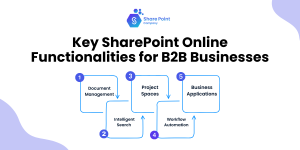
Here are some crucial functionalities of SharePoint.
Document Management
SharePoint centralizes documents in one secure repository with advanced permission settings. Employees avoid duplication, track version histories, and ensure everyone works on the latest file. In SharePoint vs. OneDrive, the previous offer document templates and metadata tagging organization.
Intelligent Search
SharePoint’s advanced search engine reduces wasted time by finding documents or employees. Employees filter results using keywords, metadata, and file types, making information discovery faster and accurate.
Project Spaces
Teams can create project-specific spaces with discussion boards, shared libraries, and deadlines. These collaborative hubs replace endless email chains, ensuring stakeholders stay aligned during projects.
Workflow Automation
SharePoint integrates with Power Automate to streamline approvals, reporting, and document routing. Automated reminders ensure accountability, reducing bottlenecks and improving compliance.
Business Applications
Companies can create custom dashboards, internal apps, or employee directories inside SharePoint. These applications simplify processes such as leave management, onboarding, and performance tracking without needing external platforms.
Related Blog: Things You Need to Know About SharePoint for the Right Move
An Overview of OneDrive
OneDrive can be described as an online organizer, which is a part of Microsoft and is a tool for data storing and sharing, as well as synchronization of personal and business data. In SharePoint vs. OneDrive, OneDrive is used as a basic gateway to the world of Microsoft, where you can store, retrieve, and organize files.
Key Features
- Cloud Storage: Allows storing and accessing files from any device.
- File Synchronization: Share and update files on different devices at the same time.
- Individual Sharing: Synchronize files or folders to share with users who are outside your organization.
- Offline Access: Files can be worked on offline, and updates will be done silently when the user is connected again.
- Version History: Back up and enhance previously created documents here.
Primary Use Cases
For personal and small team use, for example, for a project team.
More claims: Simple collaboration on a document without establishing a complex tool.
Certainly, one of the most vital innovations was the possibility to back up files securely in the clouds.
Advantages
- Easy to set up and use. More Examining More Less
- Great extension of novel capabilities with Microsoft Word, Excel, Microsoft Teams, etc.
- Available to everyone and easy on the pocket for small businesses.
Limitations
Not being able to access more collaboration features than it could offer through SharePoint.
It is unsuitable for large documents or when dealing with numerous procedures.
Key OneDrive Functionalities for Enterprises
Here are the crucial functionalities of the OneDrive.
Real-Time Synchronization
Documents edited on desktops automatically sync with the cloud. Employees always see the most recent version without manually updating files.
Document Sharing
OneDrive simplifies file sharing internally and externally. Users assign viewing, editing, or rights, ensuring secure collaboration with clients and partners.
Shared Libraries
Users link their OneDrive to SharePoint libraries, giving them direct access to organizational documents without personal storage space.
Data Security and Protection
Microsoft ensures strong security for OneDrive through encryption, ransomware detection, and recovery features. Users can restore files from accidental deletions or cyberattacks.
SharePoint vs. OneDrive: Core Differences
The difference between SharePoint and OneDrive is a matter of discussion.
| Feature | SharePoint | OneDrive |
|---|---|---|
| Enterprise Security | Advanced compliance, granular access controls, retention policies – ideal for regulated industries | Strong encryption & 2FA, but more suited for individual security needs |
| Document Sharing | Structured libraries, metadata, version control, workflows for enterprise-wide governance | Simple link-based sharing, great for quick collaboration on single files |
| Collaboration | Full team sites, dashboards, task-tracking, deep Microsoft Teams integration | Real-time co-authoring for small teams and individuals |
| Content Management & Publishing | Acts as a CMS, supports announcements, knowledge bases, and internal/external publishing | Limited to personal file storage, no publishing workflows |
| Calendars & Contacts | Integrated team calendars, shared contacts, Outlook sync, CRM-style directories | No calendar or contact features – purely file-focused |
| Best For | Mid-to-large businesses needing a digital workplace & governance | Individuals or small teams needing simple, secure file storage |
SharePoint vs. OneDrive: Enterprise Security
Security is a top concern for businesses handling sensitive customer and operational data. SharePoint provides enterprise-grade security with advanced compliance features. Such as data loss prevention, access expiration, and detailed audit logs. It allows hiring SharePoint developers to enforce granular access permissions, ensuring the right people view the right documents.
Whereas OneDrive focuses on individual file protection. It offers encryption at rest and in transit, and two-factor authentication. While ideal for personal storage, it does not offer the same enterprise governance depth as SharePoint. Therefore, businesses needing regulatory compliance and large-scale data control benefit more from SharePoint.
SharePoint vs. OneDrive: Document Creation
OneDrive shines when it comes to quick and simple document sharing. An employee can create a Word or Excel file, generate a secure link, and share it with internal or external collaborators. Permissions allowing read, edit, or comment access make OneDrive an excellent tool.
In SharePoint vs. OneDrive, the former is designed for enterprise-wide document governance. Instead of isolated file sharing, documents are stored in libraries with structured categories and versioning. It helps organizations organize large repositories of information without losing track of file ownership. Businesses managing files across departments should consider SharePoint, while OneDrive is better for one-off document collaboration.
SharePoint vs. OneDrive: Collaboration Capabilities
Both SharePoint vs. OneDrive enable real-time document editing, but the collaboration depth differs. OneDrive allows multiple users to edit Word, Excel, or PowerPoint files for individuals working on quick projects.
SharePoint takes collaboration to the next level. It provides team sites, dashboards, calendars, and task-tracking systems where groups can work together. Integration with Teams makes collaboration seamless by embedding documents and discussions in one place.
If your business needs a central hub for ongoing projects, SharePoint is ideal. If the requirement is lightweight document co-authoring, OneDrive is the simpler, faster option.
SharePoint vs. OneDrive: Content Management
SharePoint is more than a storage tool; it doubles as a content management system (CMS). Companies can publish announcements, knowledge bases, policy documents, or external-facing websites.
Features like workflow automation, metadata tagging, and publishing approvals for managing structured content. Businesses can also set up department-specific libraries for HR, finance, or operations.
OneDrive does not offer publishing features. Its focus is purely on personal content storage and retrieval, not knowledge sharing. While excellent for private work, it lacks workflows, metadata management, and publishing approvals.
SharePoint vs. OneDrive: Calendars and Contacts
SharePoint integrates calendars, task lists, and contact directories directly into its intranet. Teams can manage shared calendars to track deadlines, host events, and align schedules across departments. These calendars can sync with Outlook, ensuring employees never miss an important milestone. Similarly, SharePoint allows organizations to maintain contact directories, employee profiles, and CRM-style data integrations.
OneDrive does not offer calendar or contact management features. Its design is strictly centered around file storage and sharing. And it makes it unsuitable for managing organizational scheduling. Businesses looking to replace manual scheduling with digital efficiency benefit greatly from SharePoint’s capabilities.
When to Use SharePoint Online
- Building a custom intranet site to centralize company communication.
- Managing enterprise workflows and compliance-driven documentation.
- Hosting project dashboards and collaborative workspaces.
- Creating branded internal sites aligned with corporate identity.
- Automating approvals and employee onboarding processes.
When to Use OneDrive
- Providing employees with personal file storage.
- Supporting remote workers with file access from any device.
- Collaborating with external vendors on lightweight projects.
- Sharing documents quickly without complex intranet structures.
- Maintaining automatic document backups for security.
Business Decision: SharePoint and OneDrive Together
Companies should view SharePoint and OneDrive as complementary tools instead of competitors. Together, they enable seamless collaboration and secure storage across organizations.
For example:
- An employee drafts a contract in OneDrive.
- The approved contract moves to the SharePoint intranet for team collaboration.
- The final version is published on the company’s communication portal.
This combined approach supports individual productivity while enabling enterprise-wide governance.
Use Cases: When to Use OneDrive vs. SharePoint
Here are the real-life scenarios that describe what SharePoint vs. OneDrive is.
Ideal Scenarios for SharePoint
Collaborative Projects: Large projects that involve many people are adequately served by collaboration in SharePoint.
Intranets: SharePoint can be used to create various company portals, as announcements, policies, and resources can also be effectively posted.
Enterprise Document Management: Co-ordinate complicated operational tasks, approvals, & data management.
Ideal Scenarios for OneDrive
Personal Storage: Designed for the storage and retrieval of unique documents for an individual across devices.
Quick Sharing: OneDrive enables users to share files in the organization with other users.
Backup and Sync: Synchronize them to another location so that you can retrieve them easily, and in case of a disaster.
Microsoft 365 environment
OneDrive vs. SharePoint are not only part of the Microsoft 365 productivity platform, but they are also connected to other applications and services.
Microsoft Teams: OneDrive and SharePoint work in conjunction to offer document access and document collaboration in Microsoft Teams.
Outlook: From either platform, users can attach files to emails.
Power Automate: Workflow automation on business processes should be done using SharePoint.
Even though OneDrive is designed to allow users to access files created by them and store files, SharePoint is designed to support teamwork and customizable business processes.
Security and Compliance
Microsoft tends to prioritize security and compliance in its products, providing strong features in both solutions.
SharePoint
Two options with small and fine-grained flexibility in a function and permission of the user role.
Amenities for compliance with industry standards such as the GDPR or HIPAA.
Both the data in transit and the data stored or resident, or at rest, are encrypted.
OneDrive
The protection of personal documents and their contents is ensured by quality encryption and access control.
Small business compliance should be managed with basic compliance features.
If your business needs regulatory compliance or complex permission settings, then SharePoint should be preferred.
Pricing and Licensing
SharePoint: Available only with Microsoft 365 Business Premium and Microsoft 365 Enterprise licenses. Extra space costs more, and a higher price can be charged for customization as well.
OneDrive: It is included in all the Microsoft 365 plans, and it comes with the personal subscription plan. It is appropriate for people and individual teams with limited budgets assigned to purchase and use the products.
To large-scale businesses, SharePoint thus provides better value for money considering its capabilities.
Conclusion:
Selecting between SharePoint and OneDrive completely depends on the organization’s requirements. It is perfect for organizations with an enterprise-class document tool, collaboration, and workflow.
On the other hand, OneDrive offers a better and firsthand experience in sharing personal and official or small team files and folders that are synchronized with the office.
The differences between OneDrive and SharePoint are a matter of discussion that lets you analyze the positive parts and challenges of both tools. If you’re unsure which one fits your requirements, consider hiring SharePoint Developers to get tailored advice.
FAQs
Which platform is better for enterprise-level collaboration?
SharePoint is designed for enterprise-scale collaboration with team sites, workflows, intranet publishing, and governance features. OneDrive works best for personal storage and light team collaboration, not full-scale enterprise needs.
Can OneDrive replace SharePoint for my business?
OneDrive is excellent for secure file storage and quick sharing, but it lacks enterprise features like intranet creation, document workflows, and shared calendars. If you need a digital workplace, SharePoint is the right choice.
How do SharePoint and OneDrive integrate with Microsoft Teams?
Both integrate with Teams, but SharePoint powers shared document libraries, project dashboards, and team sites, while OneDrive mainly manages individual file storage. Together, they enhance collaboration in Teams.
What about security does SharePoint offer more than OneDrive?
Yes. Both use Microsoft’s encryption and MFA, but SharePoint offers granular access controls, compliance policies, and retention features, making it more suitable for regulated industries like finance, healthcare, or government.
Which is more cost-effective for small businesses?
For small businesses with limited collaboration needs, OneDrive is cost-effective. But if your business plans to scale and requires governance, workflows, or intranet functionality, investing in SharePoint will deliver higher ROI long-term.
What is the difference between OneDrive and SharePoint?
OneDrive is personal cloud storage tied to a single user, think of it as a digital replacement for the old “My Documents” folder. SharePoint is a team-oriented collaboration platform built for shared file storage, intranets, and structured document management across an organization. Technically, OneDrive even runs on SharePoint’s underlying architecture; it’s just scoped to one person instead of a team.
Which is more secure, OneDrive or SharePoint?
Both rely on the same Microsoft 365 security backbone encryption at rest and in transit, MFA, and ransomware recovery. The real difference is governance depth. SharePoint offers granular, site-level permission controls, retention policies, and compliance tools like eDiscovery and sensitivity labels, which makes it the stronger fit for regulated industries. OneDrive’s security is solid for individual files, but it doesn’t offer that same organizational control layer.
Is it better to share files using OneDrive or SharePoint?
For a quick, one-off file with a single person, OneDrive works fine. But for anything involving external clients, vendors, or ongoing team access, SharePoint is the better choice — it gives you centralized permissions, persistent access that doesn’t break when an employee leaves, and a more professional, branded sharing experience.
What is the purpose of SharePoint?
SharePoint is built to be the backbone for collaboration, document management, and corporate intranets. It lets teams store and organize files in structured libraries, automate approval workflows, build internal portals, and manage permissions at scale, all while keeping ownership with the organization, not an individual.
OneDrive vs. SharePoint, which is better for file sharing?
If you’re sharing internally with a small group or sending a single file externally for a one-time exchange, OneDrive gets the job done quickly. But for anything ongoing, vendor collaboration, multi-person access, or files that need to outlive whoever set them up, SharePoint is the stronger choice, since access lives with the site, not a person’s account.
Looking to get SharePoint Online integration for your business?