

SharePoint Collaboration Tools for Smarter Teamwork
Most teams don’t struggle because people aren’t doing their jobs. They struggle because work gets scattered.
Files live in inboxes. Updates sit inside chat threads. Someone edits the wrong version. Another person doesn’t even know a change was made. Slowly, trust in the system fades, and people fall back to their own ways of working.
This is the exact problem SharePoint collaboration tools are meant to solve. By leveraging sharepoint development services, teams can create a structured environment where files and updates are centralized, visible, and easily managed.
Microsoft SharePoint is not a flashy tool. It doesn’t try to impress you on day one. Instead, it gives teams something far more useful: a shared place where work stays put; changes stay visible, and people stay aligned.
Let’s talk through how that actually works not just to understand in theory, but in real working terms.
What SharePoint Collaboration Tools Really Are
At a basic level, SharePoint collaboration tools are the parts of Microsoft SharePoint that allow multiple people to work on the same content without stepping on each other’s toes.
But that description misses the point.
The real value of SharePoint collaboration services is control without friction.
- You don’t have to ask where the file is.
- You don’t have to guess which version is current.
- You don’t have to chase people for updates.
Everything lives where it should be, and everyone knows where to look.
That alone changes how teams behave.
The Core SharePoint Microsoft Tools for Collaboration
You’ll hear a lot of feature lists when people talk about SharePoint. Ignore most of them. Focus on the tools teams actually touch every day.
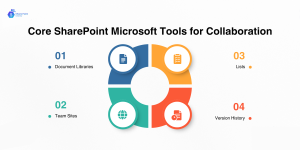
Document Libraries: Where Collaboration Starts
If SharePoint had only one strength, this would be it.
Document libraries store files, yes. But more importantly, they remember everything about those files. Who changed them. When the change happened. What existed before.
Multiple people can work on the same document at the same time. You see changes as they happen. If someone makes a mistake, you don’t panic rather you go back.
This alone removes a surprising amount of tension from teamwork.
Team Sites: Giving Work a Home
A SharePoint team site is not just another folder. It’s a workspace.
Each site is built around a purpose: a project, a department, a function. Files, lists, updates, and reference pages all live together. That way, work stays connected to context.
People stop asking, “Where should I upload this?” They already know.
Lists: Quietly Doing the Heavy Lifting
Lists don’t get enough credit. Teams use SharePoint lists to track tasks, requests, issues, and approvals. Because lists live inside SharePoint, they stay linked to documents and workflows.
Instead of chasing updates in messages, teams check the list and rather than asking who owns what, ownership is already visible.
Small change. Big impact.
Version History: The Safety Net Every Team Needs
Every edit in SharePoint is recorded. That sounds simple, but it changes behavior.
People stop being afraid of making changes. They experiment more. They move faster. They collaborate instead of waiting for permission.
That’s what good systems do they remove fear from everyday work.
How SharePoint Collaboration Software Fits into Microsoft 365
SharePoint works because it doesn’t try to do everything on its own. Instead, it sits quietly at the center and supports the tools people already open every day.
Rather than forcing teams to change habits, Microsoft SharePoint gives structure to the way work already happens. That’s why it fits naturally into Microsoft 365 instead of fighting for attention.
SharePoint and Microsoft Teams
Teams are where conversations happen. SharePoint is where work lives.
That separation is intentional, and it’s what keeps collaboration from falling apart over time.
When someone shares a file in Teams, it’s stored in SharePoint. So even when the chat moves on, the work does not. The file stays searchable, permission-controlled, and easy to find weeks or months later.
Once you see this pattern, collaboration starts to feel planned instead of reactive.
Two things make this pairing especially effective:
- Shared ownership instead of personal uploads: Files don’t belong to one person’s chat anymore. They belong to a team, which reduces dependency on individuals.
- Context without clutter: Teams handle discussion. SharePoint handles records. Each stay focused on its role, which keeps work easier to follow.
Outlook, OneDrive, and Daily Workflows
Outlook handles communication. OneDrive handles personal files. SharePoint handles shared work.
This division sounds simple, yet it solves many everyday problems teams face.
Because these tools are connected, people can move files from personal work to teamwork without re-uploading or breaking access rules. The handoff feels natural, not forced.
Two practical benefits stand out here:
- Cleaner inboxes
Files don’t live inside email threads anymore. Emails point to SharePoint, where the real work stays. - Clear boundaries between draft and final work
OneDrive supports personal thinking and drafts. SharePoint signals when something is ready for shared use.
Automation That Reduces Follow-Ups
Follow-ups are rarely about work quality. They’re about uncertainty. SharePoint reduces uncertainty through simple automation.
With Power Automate, SharePoint can send reminders, request approvals, and update records without someone having to chase others manually.
Over time, this changes how teams communicate.
Two outcomes matter most:
- Progress becomes visible without asking
Status updates to come from the system, not from people interrupting each other. - Decisions move faster
Approvals don’t sit unnoticed. They surface at the right moment, in the right place.
The result is fewer “just checking in” messages and more work moving forward on its own.
How Teams Use SharePoint Collaboration Tools in Real Life
This is where things click for most readers. See how a SharePoint Development Company can make things easier for your teams when it comes to the collaboration tools.
Remote and Hybrid Teams
Remote teams don’t need more meetings. They need clarity.
SharePoint provides a single source of truth. Files, updates, and decisions live in one place. People check in when they need to, not because they’re afraid of missing something.
That reduces burnout without slowing work down.
Project Collaboration Across Teams
Projects fall apart when information spreads too thin.
A shared project site keeps documents, timelines, and decisions together. Everyone sees the same picture. Misalignment drops. Progress becomes easier to track.
Department-Level Collaboration
HR teams use SharePoint for policies and onboarding, giving new hires a clear starting point.
Marketing teams manage content reviews and schedules, keeping feedback tied to the work itself.
Operations teams track processes and reports, so changes don’t get lost over time.
Different needs. Same platform. That consistency matters at scale, especially when people move between teams or roles.
External Partners and Vendor Collaboration
Work doesn’t stop at the company boundary. SharePoint allows teams to share specific files or sites with partners while keeping the rest of the environment protected. External users see only what they need, and internal teams retain control. This keeps collaboration moving without creating security gaps.
What’s Changing in SharePoint Collaboration
SharePoint keeps evolving, but the direction is clear.
AI features now help people find information faster, summarize content, and get answers from existing documents. These tools don’t replace thinking. They remove busy work.
At the same time, workflows are becoming more connected. SharePoint is moving away from being “just storage” and toward being a working system.
How AI Quietly Changes the Way Teams Collaborate in SharePoint
Let’s clear something up first. Most teams don’t ask for AI. They ask questions like:
- “Where is that file?”
- “Has this already been approved?”
- “Did someone update this, or am I looking at the old version?”
When those questions pile up, collaboration slows down. Not because people aren’t working, but because they’re constantly stopping to orient themselves.
This is where AI inside SharePoint collaboration tools start to matter not as a headline feature, but as a practical layer that removes small, repeated blocks. Hire SharePoint Developers today and make sure you are well updated with all newly integrated AI led collaboration tools.
When Finding Information Becomes the Actual Work
In many teams, the real work isn’t creating content. It’s finding it.
Policies sit in one site. Project files sit in another. Old decisions are buried inside long documents. People know the answer exists, yet they still ask around because searching feels harder than interrupting someone.
AI in SharePoint changes this dynamic. Instead of digging through folders, users can ask a direct question and get an answer drawn from existing content. Not a guess. Not a summary pulled from nowhere. An answer based on what the organization has already written and approved.
Over time, this reduces interruptions. People stop breaking focus just to locate information. That alone improves how teams collaborate.
Reading Less Without Missing What Matters
Here’s another quiet truth: most documents aren’t read end to end.
People scan. They look for changes. They want to know whether something affects them.
AI-assisted summaries in SharePoint help with exactly that. Users can quickly see:
- What’s new
- What changed since the last version
- Whether action is needed
This doesn’t replace careful review. It helps people decide when careful review is necessary. As a result, approvals move faster, and reviews feel less draining.
Keeping Work Moving Without Constant Follow-Ups
Every team has invisible work: reminders, nudges, and status checks. None of it shows up on a task list, yet it eats up time.
AI-supported automation inside SharePoint reduces this background noise. When documents reach a certain stage, the next step becomes visible without someone having to chase it. When something stalls, it’s easier to spot.
That means fewer “just checking” messages and fewer delays caused by simple oversight.
Helping People Understand Context, Not Just Content
New team members often feel lost, even when information is technically available.
Files exist. Processes are documented. Still, the bigger picture is missing.
AI helps bridge that gap by showing how documents relate to each other and surfacing past decisions when they’re relevant. Instead of starting from zero, people step into an existing flow of work.
This shortens ramp-up time and reduces the load on senior team members who usually have to explain everything verbally.
Why This Changes Collaboration, Not Just Productivity
The real impact of AI in SharePoint isn’t speed alone. It’s confidence.
People feel more comfortable making changes when they understand the context. They collaborate more openly when they trust that information won’t get lost. They rely less on private notes and side conversations.
That’s when collaboration stops feeling fragile and starts feeling stable.
How SharePoint Supports Collaboration Across the Work Lifecycle
Most collaboration tools work well at the start of a task. The real test comes later — when files pile up, people change roles, and decisions need to be revisited.
This table shows how SharePoint collaboration tools support collaboration from start to finish, not just at the moment.
| Collaboration Stage | What Teams Need at This Stage | How SharePoint Supports It |
|---|---|---|
| Planning | Shared space for early ideas and references | Team sites bring files, notes, and links together from day one |
| Creation | Multiple people working on the same content | Real-time editing with tracked changes and clear ownership |
| Review | Visibility into feedback and updates | Version history shows what changed, who changed it, and why |
| Approval | Clear status and accountability | Lists and workflows show where work stands without chasing |
| Ongoing Use | Stable access to finalized content | Controlled permissions keep information reliable |
| Knowledge Retention | Ability to revisit past decisions | Stored history prevents loss of context over time |
How Teams Actually Get Value from SharePoint Collaboration Tools
Let us bring this upfront, because it saves everyone time.
SharePoint doesn’t create orders on its own. It reflects whatever order already exists.
When teams say SharePoint “didn’t work for us,” what they usually mean is that no one agreed on how it should be used. Files went wherever there was space. Sites are multiplied without reason. Over time, people stopped trusting what they saw.
Getting value from SharePoint starts much earlier than features or training. It starts with intent.
Start by Deciding What Each Space Is For
Every SharePoint site needs a reason to exist. Not a technical reason — a working one.
Is this where a project lives from start to finish?
Is it a long-term home for team knowledge?
Is it meant for reference, or daily activity?
When that answer is clear, people behave differently. They upload with purpose. They stop creating duplicates “just in case.” Over time, the site begins to make sense on its own.
When that answer isn’t clear, confusion fills the gap.
Make It Obvious Where Things Belong
Most people don’t enjoy organizing content. They just want to get their work done and move on.
That’s why navigation matters more than most teams expect. When folders, libraries, and pages are laid out in a way that feels familiar, people follow it without thinking. When it feels clever or overly complex, they work around it.
The goal isn’t elegance. It’s predictability. When people can guess where something lives — and be right — they keep using the system.
Set the Rules Once, Then Protect Them
Every shared system needs boundaries. Not heavy ones. Just clear ones.
Who creates new sites?
Who owns a cleanup?
What happens when a project ends?
These decisions don’t need weeks of discussion. They just need to be made — and respected. When rules change every few months, trust erodes. When they stay steady, people relax into the system.
That’s when SharePoint stops feeling fragile.
Trust Is the Real Metric
Adoption numbers matter, but trust matters more.
When people trust that files are current, that permissions make sense, and that work won’t vanish, they stop creating side systems. They stop keeping personal backups. They collaborate in the open.
That’s when SharePoint becomes part of how work happens, not just where work is stored.
The Bottom Line
SharePoint collaboration tools are not about adding another system to the stack. They are about giving work a place where it can stay visible, traceable, and shared without constant effort. When teams struggle with collaboration, it’s rarely because they lack tools. It’s because work has no stable home.
SharePoint changes that — but only when it’s treated as a working environment, not a storage bin.
The organizations that get the most value from Microsoft SharePoint aren’t the ones chasing features. They’re the ones who respect how people actually work. They build structure first, support it with the right tools, and let trust do the rest.
When that happens, collaboration stops feeling like something teams have to manage.
It simply becomes how work gets done.
Is your team collaborating with SharePoint or just storing files there?
A short review of your SharePoint setup by our experts can reveal whether structure, ownership, and workflows truly support how your teams work today.
Frequently Asked Questions
1. What exactly are SharePoint collaboration tools?
They are the group of features inside Microsoft SharePoint that lets teams share files, work on documents together, and keep project info in one shared space.
2. Can SharePoint collaboration work for remote or hybrid teams?
Yes, SharePoint collaboration software lets people access shared content and work together from anywhere with an internet connection.
3. How does SharePoint help multiple people edit the same document?
It allows real‑time co‑authoring, so team members can open and edit the same file at once without overwriting each other’s changes.
4. Is Microsoft SharePoint better than just using shared folders or email for teamwork?
For most teams, yes because SharePoint keeps files organized, tracks versions, and links with other tools like Teams and Outlook.
5. Can external clients or partners work inside SharePoint collaboration tools too?
Yes, you can invite guests with controlled access so partners can view or edit content without giving them full internal rights.