

How to Streamline Your Business Processes With SharePoint Workflow Automation?
One of the most powerful features on SharePoint that is underleveraged by businesses is the SharePoint workflow automation.
Whether it’s routing approval requests, sharing project updates, or documents, it slows teams down. It is where Microsoft SharePoint process automation becomes a game-changer. It transforms complex, manual processes into streamlined digital flows for smooth work.
It enables efficient and compliant business process optimisation as well as enhances SharePoint collaboration, removing automation as a pain point.
Let’s dive deep to understand how SharePoint automation can empower your firm.
What Is SharePoint Workflow Automation?
SharePoint process automation is the process of using Microsoft SharePoint and Power Automate. So, to replace repetitive manual tasks with automated digital workflows.
Simply, a virtual employee ensures every document gets approved, and every report is generated. SharePoint acts as the central hub where teams collaborate and manage documents. Over 3 billion Power Automate flows run against SharePoint every week to streamline document and list workflows. When integrated with Power Automate, the intelligent process automation tool connects multiple apps for data flows.
Building Blocks of a SharePoint Automation Workflow
A SharePoint automation workflow isn’t magic; it’s a well-designed sequence of logical steps. Each workflow has five key building blocks:
Key building blocks of a SharePoint automation workflow, including triggers, actions, conditions, approvals, and outcomes.
Core components of a SharePoint workflow: triggers, actions, conditions, approvals, and outcomes.
Key SharePoint workflow components for smooth business process automation.
- Triggers – The event that starts a workflow (e.g., when a document is created, edited, or approved).
- Actions – The steps the system performs automatically (like sending an email, updating a field, or generating a report).
- Conditions – The decision-making logic (for example, “If the document is approved, send it to HR; if rejected, notify the author”).
- Approvals – Points where human confirmation is needed before the next step continues.
- Outcomes – The final results, such as an approved document, completed task, or notification sent.
Common Types of Workflows You Can Automate
SharePoint offers several workflow types, each serving a unique purpose. Here are the most common and practical ones:
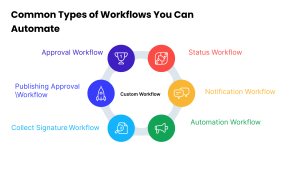
Common types of SharePoint workflows include approval, status, notification, automation, and custom.
Popular SharePoint workflows: approval, status, notification, automation, and custom types.
Automate SharePoint workflows for approvals, notifications, and publishing.
Approval Workflow
Ideal for automating documents and form approvals. When a document is uploaded, the SharePoint automation routes it to a designated place. And it approvers, tracks responses, and updates the document’s status automatically.
Status Workflow
Automatically updates a document or project’s status based on set conditions. For example, a “Pending” document might automatically shift to “In Review” once comments are added.
Notification Workflow
Triggers alerts or reminders when specific events occur. Such as upcoming deadlines, document changes, or approvals waiting for action.
Automation Workflow
Handles background operations, syncing data between lists, creating folders, or moving outdated files. You can get a SharePoint development company for more assistance.
Collect Signature Workflow
Automatically send documents for signature as soon as they arrive, track signature status, and notify relevant parties by enabling the signature SharePoint workflow automation.
Publishing Approval Workflow
Send content for review automatically before it is published and reduce errors with the publishing SharePoint workflow automation.
Custom Workflow
A tailor-made workflow that combines multiple actions and conditions to match your business’s unique needs. As it ensures complete flexibility.
By combining these types, businesses can create an automated digital ecosystem inside SharePoint.
Step-by-Step to Create a SharePoint Workflow Automation
Here are the steps to create a workflow in SharePoint automation.
Easily create SharePoint workflow automation with step-by-step actions.
Step 1: Log in to Power Automate
Start by logging in to Microsoft Power Automate using your Microsoft 365 or SharePoint account. Power Automate serves as the backbone for workflow automation in SharePoint with hundreds of apps and services.
Once logged in, you’ll see a dashboard filled with templates and connectors. These prebuilt tools simplify automation of common business operations, such as approvals and document management.
Step 2: Create a New Flow
Click on “Create” in the left panel and select “Automated Cloud Flow.” Give your workflow a meaningful name, such as Document Approval Flow, so it’s easy to identify later. This flow represents your digital process step that would require manual input to be defined via triggers.
Step 3: Choose a Trigger
A trigger is what sets your workflow in motion. For example:
- “When a new file is uploaded to a document library.”
- “When a list item is modified.”
- “When a form response is submitted.”
Selecting the right trigger ensures your workflow begins whenever the event occurs, eliminating the human initiation.
Step 4: Add Actions
Actions define what happens after the trigger. In this step, you can automate multiple processes, such as:
Sending an approval request to a manager.
Updating metadata (like changing document status from “Pending” to “Approved”).
Sending follow-up notifications to stakeholders.
Copying the approved document to another SharePoint folder or team channel.
You can add multiple actions within one flow. It allows SharePoint automation to function like a virtual assistant that coordinates work across multiple apps.
Step 5: Set Conditions
Most business processes depend on decisions. Conditions let you define “if/then” logic in your automation.
For example:
If a document is approved → move to the “Approved Documents” folder.
If rejected → send an email to the author requesting a revision.
These conditional branches make workflows dynamic and flexible, handling every possible scenario without manual intervention.
Step 6: Test and Monitor
Once your workflow is designed, test it before deployment. Power Automate allows you to run the flow in test mode to identify errors or missed steps. You can also monitor the workflow’s performance in real-time by reviewing logs, completion times, and error alerts. This ensures everything works smoothly and reliably.
Step 7: Go Live and Refine
Once it’s live, SharePoint begins executing the process automatically based on your conditions. However, remember that automation is never “set and forget.” As your business evolves, revisit and refine your workflows to include new rules. Continuous improvement keeps automation aligned with your goals.
Why Businesses Need SharePoint Workflow Automation?
Let’s see what SharePoint automation workflow offers and the benefits of SharePoint process automation, including efficiency, accuracy, collaboration, and compliance.
Streamlined Operations
Automation removes redundant manual steps, allowing tasks to move seamlessly. It drastically reduces delays and ensures projects progress smoothly without constant follow-ups. You can hire SharePoint developers for more assistance.
Consistency and Accuracy
Manual processes often lead to inconsistencies, missed updates, outdated versions, or human errors. Automated workflows ensure every process follows the same sequence, maintaining compliance. It is crucial for industries like finance, healthcare, or manufacturing, where precision is essential.
Improved Collaboration
With SharePoint’s centralized platform, everyone can see where a task stands. Whether it’s a document awaiting review, team members can track progress in real time.
Cost and Time Savings
Reducing manual intervention means less administrative burden and fewer human errors. Moreover, automation reduces time wasted on routine emails or reminders. It allows employees to focus on more strategic, revenue-generating tasks.
Enhanced Compliance
SharePoint automation workflows inherently maintain logs of every action, approval, or modification that gets recorded. This digital trail ensures compliance with internal policies and regulatory standards. With audits, managers can quickly access detailed process histories, saving time and reducing legal risks.
Scalability and Adaptability
As your business grows, manual systems become inefficient. SharePoint workflows can easily add new rules, integrate with new apps, or expand automation. This adaptability ensures your business processes evolve effortlessly as your company scales.
Top SharePoint Workflow Automation Tools
There’s no single “best” SharePoint workflow tool, only the right fit based on scale, complexity, and how tightly you want to stay within Microsoft 365.
Below is a practical breakdown of the most widely used options, what they’re best at, and where they fall short.
1. Power Automate (Microsoft)
The first SharePoint workflow automation tool that we recommend is Power Automate. It is a native Microsoft automation that can be used to automate tasks, approvals, notifications, and even system processes.
Most organisations leverage it to modernise existing or create new workflows. There are 100 pre–built SharePoint workflow templates available to get started for businesses.
Best for:
Teams already using Microsoft 365, from simple approvals to advanced process SharePoint automation for workflows.
Pricing:
Free trial · $15/user/month (Premium) · $150/bot/month (RPA)
Why teams choose it
- Native integration with SharePoint, Teams, Outlook, and Excel
- 100+ ready-made SharePoint workflow templates
- Cloud flows for business processes + desktop flows for RPA
- AI Builder for document processing and intelligent automation
- Inherits SharePoint security and permissions automatically
Strengths
- Feels like a natural extension of Microsoft 365
- Low-code interface suits both IT and business users
- Large connector ecosystem for third-party apps
Limitations
- Costs rise quickly at scale
- Advanced flows require time to master
- Premium connectors add to the total cost
2. Nintex Workflow for SharePoint
Nintex workflows are designed to run seamlessly inside SharePoint, with no additional software or heavy setup required. Its visual workflow designer and hundreds of predefined actions make it easy to build both simple and highly sophisticated workflows.
Organisations can use it to bring end-to-end automation on one platform. From simple processes like digital forms to complex workflows like analytics and e-signatures can be automated using Nintex.
Best for:
Large enterprise integration solutions with heavy document workflows and compliance needs
Pricing:
Custom enterprise pricing (often $5,000–$50,000+ annually)
Why teams choose it
- Visual drag-and-drop workflow and form designer
- Advanced document generation and approvals
- Built-in audit trails, versioning, and analytics
- RPA support for end-to-end automation
Strengths
- Excellent for regulated industries
- Strong governance and audit readiness
- Powerful customization for complex processes
Limitations
- No free tier
- Steeper learning curve
- Pricing can be difficult to forecast
3. K2 Five
Unlike simpler SharePoint automation tools, K2 Five goes beyond task automation. It is well-suited for large, distributed, or regulated environments. Using it, organisations can automate processes, work allocation, and enable smarter decision-making.
K2 Five has a process-driven approach that ensures smooth functioning across SharePoint lists, libraries, multiple sites, and even different SharePoint versions.
Best for:
Complex, enterprise-grade workflows that must survive SharePoint upgrades
Pricing:
Custom enterprise pricing
Why teams choose it
- Independent workflow engine (not tied to SharePoint updates)
- Smart Forms and Smart Objects for data-driven workflows
- Advanced escalation, exception handling, and monitoring
Strengths
- Highly scalable and flexible architecture
- Strong SQL and enterprise system integration
- Processes can run beyond SharePoint itself
Limitations
- Requires technical expertise
- Longer setup and onboarding
- Not ideal for quick, lightweight automation
4. WEBCON BPS
If you want to enable cross-platform SharePoint automation to improve your operations, then WEBCON BPS SharePoint automation tools are the way to go. It allows you to build business applications without the cost, complexity, or rigidity of hard-coded solutions.
The result is a business solution that centralises operations and is faster to deploy, maintain, modify, and operate.
Best for:
Organizations are automating workflows across SharePoint and other systems.
Pricing:
Custom pricing
Why teams choose it
- Unified platform for multi-system automation
- Instant Change™ updates live workflows without downtime
- Hybrid deployment (cloud or on-prem)
- Full application packaging (workflows, forms, data, reports)
Strengths
- Handles cross-platform complexity well
- Zero-downtime workflow updates
- Centralized governance and deployment
Limitations
- Overpowered for SharePoint-only use cases
- Higher learning curve
- Enterprise-level investment
5. FlowForma
The Flowforma automation tool is well-suited for document-driven SharePoint automation. It is a no-code automation platform that helps in automating approvals, publishing, onboarding, compliance, and other similar processes.
FlowForma reduces developer reliance and makes automation accessible to everyone, not just developers. Your team can conveniently run, build, and improve workflows as per their requirements within SharePoint.
Why Choose Flow Forma for SharePoint Workflow
Best for:
Teams wanting fast, no-code automation with AI assistance
Pricing:
Typically $10–$20/user/month (custom plans)
Why teams choose it
- AI Copilot for building workflows in minutes
- No-code, business-user-friendly platform
- Native Microsoft 365 integration
- Built-in compliance, reporting, and governance
Strengths
- Extremely fast time-to-value
- Minimal IT dependency
- AI helps optimize and refine processes
Limitations
- Smaller ecosystem than older platforms
- AI features may need testing to validate ROI
- Less suited for highly bespoke logic
6. Zapier
If your workflow goes beyond Microsoft’s ecosystem, then Zapier will be the right tool for you. It can connect SharePoint to over 8,000 apps and 400+ AI tools.
Best part? It is fast to enable and implement. Once connected, you can trigger events based on your connected tools/platforms like HubSpot, JotForm, Google Slides, Outlook, accounting systems, and more.
All of this without writing a single line of code.
Best for:
Small teams connecting SharePoint with non-Microsoft tools
Pricing:
Free plan · Paid plans from ~$19.99/month
Why teams choose it
- Connects SharePoint with 7,000+ apps
- Simple trigger-action workflows (“Zaps”)
- No technical skills required
Strengths
- Fast setup and easy to use
- Huge integration library
- Cost-effective for light automation
Limitations
- Not designed for complex SharePoint logic
- Limited governance and control
- Usage-based pricing can escalate quickly
7 Essential SharePoint Workflows Businesses Should Automate Today
Here are some of the most impactful SharePoint automations for workflow businesses should automate today.
1. Intelligent Document Approval Workflow
Document approvals are one of the most common operational bottlenecks inside organizations. Teams often rely on endless email chains, manual follow-ups, and outdated document versions that create confusion and delays.
A SharePoint document approval workflow automates the entire review cycle by routing files to the right stakeholders based on predefined approval rules. Businesses can configure sequential or parallel approvals, automated reminders, audit tracking, and version management within a centralized environment. Every action remains traceable, reducing approval delays and eliminating uncertainty around the latest document version.
The result is faster decision-making, stronger governance, and significantly improved operational efficiency.
2. Automated Task Assignment and Tracking Workflow
As organizations scale, manually assigning tasks across departments becomes increasingly inefficient. Important activities get delayed, accountability weakens, and project visibility decreases.
SharePoint task automation workflows help businesses distribute tasks automatically based on employee roles, workload, department, or workflow conditions. Notifications, due dates, progress tracking, and escalations can all be automated within the platform. This improves response times, enhances accountability, and helps teams maintain operational consistency.
3. Issue Tracking and Resolution Workflow
Managing operational issues manually often creates delays in resolution, fragmented communication, and inconsistent tracking. This becomes especially problematic for IT teams, operations departments, and enterprise support environments.
A SharePoint issue management workflow centralizes issue reporting, assignment, escalation, status tracking, and resolution updates within a single system. Automated notifications ensure stakeholders remain informed throughout the process. Teams can also generate performance reports to identify recurring issues and operational gaps.
With SharePoint automation issue tracking workflows, businesses improve service delivery while reducing manual administrative effort.
4. Employee Onboarding Workflow Automation
Employee onboarding involves multiple departments, approvals, documents, and repetitive coordination tasks. When handled manually, the process often becomes inconsistent and time-consuming.
A SharePoint HR onboarding workflow streamlines employee setup by automating document collection, policy acknowledgments, training schedules, equipment requests, and access provisioning. Employees can also access training materials, policies, and onboarding resources from a centralized portal.
This creates a smoother onboarding experience while improving internal coordination and reducing administrative overhead.
5. Financial and Expense Approval Workflow
Manual expense approvals create unnecessary delays, reduce visibility, and increase compliance risks for finance teams. Businesses managing multiple departments or locations often struggle with inconsistent approval processes.
A SharePoint expense approval workflow automates claim submission, verification, approval routing, and payment processing using predefined approval hierarchies. Employees can submit expense requests directly through SharePoint forms, while managers receive automated notifications for review and approval. The workflow can also apply rules based on expense limits, departments, or policy compliance requirements.
Finance teams benefit from improved transparency, faster reimbursements, and stronger financial control across the organization.
6. Contract and Compliance Management Workflow
Legal and compliance teams manage large volumes of sensitive agreements, renewal dates, approvals, and policy documents. Without automation, important deadlines and compliance actions can easily be missed.
A SharePoint contract management workflow helps organizations automate document reviews, approval cycles, renewal reminders, retention policies, and compliance tracking. Automated renewal alerts help businesses avoid missed deadlines and contract lapses.
This reduces operational risk while improving governance and document visibility.
7. Project Collaboration and Delivery Workflow
Project teams often operate across departments, locations, and external stakeholders. Without structured workflows, collaboration becomes fragmented, and progress tracking becomes difficult.
SharePoint automation centralizes project tasks, document sharing, approvals, timelines, and reporting inside one collaborative workspace. Teams can automate status updates, milestone notifications, and document review cycles to maintain project momentum. Integrated dashboards provide leadership teams with real-time visibility into project performance.
This improves collaboration, accelerates delivery timelines, and strengthens overall project governance.
Power Automate vs. SharePoint Rules: Key Differences
Organisations need to choose the right SharePoint workflow automation approach. Power Automate, SharePoint rules, and 3rd party paid SharePoint workflow automation tools are the three main options to choose from.
If you can automate workflow using native tools, then I would recommend choosing between Power Automate and SharePoint rules. Before you choose between Power Automate and SharePoint rules, it’s important to understand the distinction between the two.
Technical Architecture
Once you set a flow, Power Automate flows trigger automatically whenever set conditions are met. Power Automate continuously checks for automation flow, which is triggered whenever set conditions are ultimately matched. One major downside of Power Automate is that it can lead to unnecessary API consumption, which could be worse for high-frequency events with low match rates.
Compared to that, SharePoint rules evaluate conditions at the SharePoint level before getting triggered. The rule performs “pre-filtering,” meaning the action only triggers if conditions are met, reducing API calls significantly. Rules use native SharePoint integration without external API dependencies.
Performance Implications
Compared to Power Automate, SharePoint automation rules have reduced API call consumption by up to 90% in cases where only a small percentage of items match rule conditions.
SharePoint rules can reduce API call consumption by up to 90% in scenarios where only a small percentage of items match the rule conditions.
For example, if you want to email a manager only when a task’s status changes to “Approved,” a SharePoint rule won’t trigger the flow unless that specific condition is met. By contrast, a Power Automate flow triggers on every status change, then checks the condition internally.
Best Practice Selection
Use SharePoint Rules for:
- Simple notifications on column value changes
- Direct email alerts when status updates
- High-frequency triggers with low match rates
- Performance-critical scenarios
- Scenarios where pre-filtering reduces unnecessary API calls
Use Power Automate for:
- Complex business logic requiring multiple conditions
- Multi-system integrations (Teams, Outlook, Dynamics 365)
- Rich data manipulation and transformations
- Advanced error handling and retry logic
- Workflows involving approvals, escalations, or specialized actions
Not Sure Which SharePoint Automation Tools Work Best for You?
The Future of SharePoint Workflow Automation
The next era of Microsoft SharePoint workflow automation is driven by AI, analytics, and Copilot integration.
Future workflows will not only automate tasks but also:
- Predict bottlenecks before they happen.
- Recommend optimal approval routes.
- Auto-assign tasks based on workload or expertise.
- Learn from user behavior to enhance efficiency.
This AI-driven evolution will transform SharePoint into a self-optimizing digital workspace. Because it is capable of intelligent decision-making.
Expert Opinion
Most businesses don’t struggle because their teams lack effort. They struggle because their processes still depend on manual coordination, scattered approvals, and disconnected systems. SharePoint workflow automation changes that completely. When implemented strategically, it becomes far more than a document tool. It becomes the operational backbone that keeps departments aligned, approvals moving, and information flowing. The real value of SharePoint automation lies in its ability to reduce operational friction while improving visibility, compliance, and scalability across the organization. Businesses that automate intelligently create agile workflows that directly improve productivity, collaboration, and long-term operational efficiency.
Conclusion:
In a world where every second counts, SharePoint workflow automation is a strategic advantage. By digitizing manual processes and empowering teams, SharePoint helps businesses operate faster and with greater agility.
FAQs
1. What is SharePoint workflow automation, and how does it benefit businesses?
SharePoint workflow automation helps businesses streamline repetitive processes like approvals, document routing, notifications, onboarding, and compliance tasks. It reduces manual effort, improves operational speed, increases accountability, and helps teams collaborate more efficiently across departments.
2. Which business processes can be automated using SharePoint workflows?
Businesses commonly automate document approvals, invoice processing, HR onboarding, leave requests, contract management, procurement approvals, compliance tracking, project updates, and employee collaboration workflows using SharePoint automation solutions.
3. Can SharePoint workflows integrate with Microsoft Teams, Outlook, and Power Automate?
Yes. SharePoint workflow automation integrates seamlessly with Microsoft Teams, Outlook, OneDrive, Power Automate, and other Microsoft 365 tools, enabling centralized communication, task tracking, notifications, and cross-platform collaboration.
4. How does SharePoint workflow automation improve operational efficiency?
By eliminating repetitive manual tasks, SharePoint workflows reduce approval delays, minimize human errors, automate notifications, and create structured business processes that improve productivity, transparency, and overall process consistency.
5. Is SharePoint workflow automation suitable for enterprise-level organizations?
Absolutely. SharePoint workflow automation is highly scalable and supports enterprise-grade operations across departments, locations, and teams while maintaining compliance, security, and centralized process management.
6. Can SharePoint workflows support approval hierarchies and role-based permissions?
Yes. SharePoint workflows can be configured with custom approval chains, department-based routing, escalation rules, and role-based permissions to ensure secure and organized process management across the organization.
7. How secure is SharePoint workflow automation for sensitive business data?
SharePoint includes enterprise-grade security features such as encryption, role-based access control, audit logs, compliance policies, and Microsoft security infrastructure to protect sensitive documents and workflow data.
8. Why should businesses invest in custom SharePoint workflow automation solutions?
Custom SharePoint workflow automation aligns directly with your operational processes, business goals, compliance needs, and collaboration structure. Unlike generic tools, customized workflows improve adoption, efficiency, scalability, and long-term process optimization.