

An In-Depth Guide on How to Set Up SharePoint Document Management in 2026?
Businesses that handle substantial volumes of files each day need effective document management strategies. Etiquette management through SharePoint document functionality functions as an efficient approach to maintaining documents while enabling secure central organization and teamwork collaboration. SharePoint document management gives firms a robust infrastructure that streamlines workflows through either SharePoint Online installation or on-premises platforms.
This article demonstrates the complete installation process for SharePoint document management while presenting established practices to capitalize on their advantages.
Understanding SharePoint document management
A SharePoint Document Management System (DMS) is just a digital filing cabinet and a central brain for documents. Instead of chasing files across emails, desktops, and drives, SharePoint brings everything into one secure, searchable, and organized space. SharePoint is an enterprise-grade document management powerhouse, used by 250,000+ organizations globally to cut operational costs by up to 55% and boost productivity. Whether you’re storing contracts, policies, project documents, or invoices, SharePoint ensures that your teams always find the right file, the latest version, and the safest copy without wasting time.
By using a SharePoint Development Company, organizations can implement a structured document management approach that combines security, collaboration, and efficiency seamlessly.
It turns messy document chaos into controlled, collaborative knowledge management. An efficient document storage, retrieval, and management system exists within SharePoint as a solution that provides numerous features for organizational document needs. SharePoint key features implement a defined method to handle documents, which creates both collaborative and accessible functionalities.
Is SharePoint a Document Management System or Just a Storage Tool?
This question comes up more often than people admit.
Out of the box, SharePoint can behave like a cloud storage platform. Files go in, files come out. But calling that a document management system in SharePoint would be generous.
A true document management system does more than store files. It enforces consistency, maintains history, protects sensitive information, and helps users find what they need without guesswork.
SharePoint becomes a SharePoint document management system only when:
- Documents are organized with a purpose
- Metadata is used thoughtfully
- Permissions follow rules, not exceptions
- Governance exists, even if it’s light
In other words, SharePoint provides the building blocks. The system is something you assemble.
Key Benefits of a SharePoint Document Management System
Organizations must set up a SharePoint document management system by following these preparation steps. You can hire SharePoint developers for seamless management. When SharePoint document management services are implemented with the purpose not as a digital filing cabinet, but as a working system, the benefits show quietly in everyday operations.
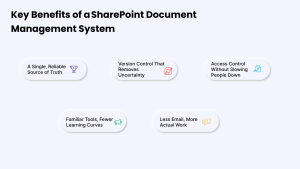
A Single, Reliable Source of Truth
Instead of documents living across inboxes, personal drives, and shared folders, SharePoint gives teams one place to work from. This reduces second-guessing. People stop asking which file is correct because the system itself answers that question.
Over time, this clarity builds trust in the content—not just in the tool.
Version Control That Removes Uncertainty
Every change is recorded automatically with the document management system in SharePoint. You can see what was modified, when it happened, and who made the update. If something goes wrong, earlier versions are still there.
As a result, teams spend less time protecting files and more time improving them.
Access Control Without Slowing People Down
SharePoint allows access to be set with intention. Sensitive documents stay restricted, while day-to-day files remain easy to reach. When permissions are designed well, users rarely think about security, and that’s a good sign.
The Microsoft document management system protects information quietly, without becoming a barrier to work.
Familiar Tools, Fewer Learning Curves
As SharePoint sits within the Microsoft ecosystem, users work with tools they already know, such as Word, Excel, Outlook, and Teams. This lowers resistance and shortens adoption time.
Instead of learning a new way to work, teams extend the one they already have.
Less Email, More Actual Work
Documents no longer need to be passed around as attachments. Links replace files, and updates happen in one place. This reduces clutter and prevents outdated versions from circulating.
Over time, communication becomes lighter, and collaboration becomes clearer in the Microsoft document management system.
Related Blog: 10 Game-Changing SharePoint Features to Boost Your Productivity
Choosing Between SharePoint Online and On-Premises
Businesses that need flexibility and scalability throughout, with remote accessibility, should choose SharePoint Online features.
Organizations falling under stringent security mandates should choose SharePoint On-Premises as their platform.
Identifying Document Management Requirements
The storage system requires specifying what kinds of materials need to be saved.
The list of individuals who have authorization to view these documents needs identification.
The organization requires implementation of which compliance requirements and retention rules?
Planning Folder Structure and Metadata
A proper hierarchical system helps maximize document storage efficiency.
Implement metadata tagging to enhance searchability within the SharePoint document management system.
How SharePoint Document Management Differs from Traditional File Servers?
Various SharePoint development companies view it with a file-server mindset. That’s understandable, but it’s also where things often go wrong.
Traditional file servers depend heavily on folders. Over time, those folders grow deeper and harder to navigate. Access is usually all-or-nothing, and collaboration happens through copies.
SharePoint document management system, by contrast:
- Encourages flatter structures
- Uses metadata instead of nested folders
- Allows secure sharing without duplication
- Supports real-time collaboration
Once you view documents as searchable assets rather than files, you must remember the location of, the difference becomes clear.
Core Modules of the SharePoint Document Management System
Here are the crucial modules using SharePoint for document management.
- Document Libraries: Keep files organized and easy to reach. Group them by team, project, or department.
- Metadata Management: Add simple tags like author, file type, or project name. This makes sorting and finding files much faster.
- Version Control: Each time someone updates a file, SharePoint keeps a copy. You can go back to earlier versions anytime.
- Permissions and Access Control: Let people see or edit files based on their role. Set permissions at the site, folder, or file level.
- Workflow Automation: Use workflows to move files through steps like review and sign-off without manual work.
- Smart Search Functionality: Find documents quickly using metadata, keywords, or filters. Search improves as your document volume grows.
- Real-time Collaboration Tools: Allow multiple users to edit documents simultaneously so everyone stays aligned and up to date.
- Seamless Integration with Microsoft 365: Connects with Teams, Outlook, OneDrive, and other apps, so you can work across tools effortlessly.
Core Components of SharePoint Document Management
To understand how the document management system in SharePoint works, it helps to look at its parts not as features, but as roles within a system.
Document Libraries
Libraries are where documents live. Each library can have its own rules, structure, and permissions. Think of them as folders and more as controlled environments for related content.
Metadata and Columns
Metadata describes document type, department, status, owner, or any attribute that helps with filtering and search. This is what allows the SharePoint document management system to move beyond deep folder structures.
Version History
Every change is recorded. You can see who edited a file, when it changed, and restore earlier versions. This alone removes a surprising amount of friction from the entire document management system in SharePoint.
Permissions and Access Control
Access can be set at the site, library, folder, or even document level. When handled carefully, this keeps sensitive content protected without slowing teams down.
Search and Discovery
Search in SharePoint relies heavily on how well documents are described. When metadata is ignored, search results suffer. When it’s used correctly, search becomes reliable instead of frustrating.
Collaboration Features
Multiple people can work on the same document at the same time, with changes visible instantly in SharePoint DMS. This changes how teams collaborate, provided the structure supports it.
Each of these pieces matters on its own. Together, they form the foundation of SharePoint document management that actually works in practice.
Designing the Right Document Structure in SharePoint
This is where most guides stay vague. We won’t. Let us have a look at how to design the right SharePoint document management system.
Folders vs. Metadata: Making the Right Choice
Folders still have a place in SharePoint DMS. They work well when documents naturally group into a small number of clear categories. Metadata becomes essential when documents need to be viewed from different angles by department, status, client, or time period.
A helpful way to think about it is this:
If users argue about where a document should go, metadata is probably the better option.
When to Create Separate Libraries
Separate libraries make sense for the Microsoft document management system when:
- Permissions differ significantly
- Content has a different lifecycle.
- The audience changes
Creating too many libraries can confuse users. Balance matters.
Naming Conventions That Age Well
Clear, consistent naming reduces reliance on memory. Avoid clever abbreviations. Aim for names that still make sense a year later for better visibility in SharePoint DMS.
Avoiding Over-Engineering
Complex structures may look impressive on paper, but they often slow adoption. Start with what users can understand, then adjust as patterns emerge.
Governance in SharePoint Document Management
Governance has a reputation problem. It sounds restrictive, but in reality, it protects both users and content in the Microsoft document management system.
In practical terms, governance means:
- Defining who can create what
- Setting clear ownership
- Deciding how long documents are kept
- Controlling access thoughtfully
Naming standards, content types, and retention rules don’t need to be heavy-handed. Even a few clear guidelines can prevent long-term disorder.
When governance is explained as support rather than control, adoption improves noticeably within SharePoint DMS. Hire Microsoft SharePoint developers and cut the friction caused in this whole process.
Step-by-Step Guide to Setting Up Document Management in SharePoint
The first step to be followed is the creation of a SharePoint document library; as stated earlier, this activity needs to be completed before the next activity can begin.
To perform the steps below, first, the user needs to open SharePoint Online or SharePoint On-Premises.
Step 1: Create a SharePoint Document Library
Click Create and get ready to use the library that is now open for business.
Step 2: Define Metadata & Content Types
Metadata refers to the information that WordPress uses to organize content in its database core, tags, and categorize the contents of the website, while content types refer to the differences in content organization and presentation.
In Word, choose your document library and go to “Library Tabs.” There you will find “Library Settings.”
Under “Columns,” create metadata fields that would include Department, Project, which should contain the name of the project that the document relates to, and Document Type.
Create a Content Type even for document types like invoices, reports, contracts, etc.
This helps in enhancing the classification of documents in the SharePoint DMS.
Step 3: Configure Version Control
Open Library Settings.
This should be done using the Enable Versioning feature, which will allow the tracking of changes made to a document.
The major and minor requirements under “> shall be configured as follows:
That way, the document has validity in the SharePoint document management system.
Step 4: Set Up Permissions & Access Control
Click on the tab that says “Library” in the lower set of links and look for an option that says “Permission Management,” or “Permissions,” or “Permissions and Access.”
Based on access level, allow the users to choose among the given roles available, such as owner, contributor, and viewer.
Among the aspects that can be controlled and managed in SharePoint are groups and permissions as well.
It is advisable to apply IRM (Information Rights Management) to improve its security.
Step 5: Automate Workflows
Utilize Power Automate to create a series of workflows to cover all document approval processes.
Sending of notifications can be automated to alert those concerned when the documents are updated or when a certain document has been submitted.
Allow some of the contents to be approved before they are published, especially when the documents are sensitive.
When it comes to document handling, some of the value comes in the form of workflows, which means a cut down on manual work in SharePoint.
Step 6: Enable Co-Authoring & Collaboration
Allow for co-accessing and co-editing, thus facilitating online/audio-visual cooperation.
Interoperability with Teams so documents can be directly discussed.
To edit documents while the computer or device monitor is off or not connected to the internet, use OneDrive Sync.
The integration capabilities make SharePoint DMS a good business solution.
Related Blog: SharePoint Online Development: Features and Development Solutions
Best Practices for Effective Document Management in SharePoint
To improve the efficiency of SharePoint in document management, the following guidelines were recommended:
-
Use Consistent Naming Conventions
Standardize file names (e.g., “Invoice_2024_ClientXYZ”).
Avoid generic names like “Document1” to prevent confusion.
-
Implement Document Tagging and Search Optimization
Insert subject headings for easy identification of the document.
Use managed metadata services to maintain consistency.
-
Set up Document Lifecycle Management & Compliance
Define document retention policies. A SharePoint Document Management system should implement automatic procedures to archive and delete files that become outdated.
SharePoint DMS functions as a tool to uphold regulatory compliance requirements.
-
Regularly Monitor & Audit Document Access
The system needs audit log functionality to monitor access to documents, along with tracking their modifications.
The SharePoint Security Reports help users detect attempts at unauthorized system access.
Build a Clear Site Structure
Organize by teams or projects to avoid confusing folder systems. Give each team its own space for cleaner navigation. Tag files with labels like “Client Name” or “Contract Status” to make searches fast and accurate.
Define Roles Early
Decide who manages libraries, permissions, and compliance from the beginning to avoid confusion later. Always keep track of changes, so your team can revert whenever needed.
Stick to Naming Rules
Use formats like “Client_Project_Year” for quick and consistent retrieval. Build reusable templates for files like contracts or proposals to reduce errors.
Control Permissions Carefully
Give access only to the people who need it, especially for sensitive documents. Build quick-filtered views for each team, like “Campaigns” or “Pending Contracts.” Notify users when documents are updated, approved, or need attention.
Use Retention Policies
Keep necessary files while auto-archiving or deleting the rest. Quickly recover files within the 14-day window when needed.
Add Governance Rules
Set proper guidelines for storing, sharing, and securing documents. Tag and organize documents properly before importing to avoid future clutter.
Common Challenges & How to Overcome Them
The SharePoint document management system delivers, but it challenges user effectiveness in specific ways.
-
Handling Permission Issues
The proper definition of access permissions ensures that unauthorized users cannot enter the system.
The maintenance of security depends on scheduled audits of permission settings.
-
Managing Storage Limits and Performance
The system can optimize storage capacity through an active document deduplication feature.
Additional document storage options within SharePoint Online features can be used when necessary.
-
Preventing Document Duplication and Confusion
A document system called Check-In/Check-Out should be established to stop version duplication.
Staff must learn appropriate document handling protocols that apply to SharePoint DMS.
Industry Use Cases for SharePoint Document Management
Modern businesses no longer use SharePoint simply as a file storage platform. Across industries, SharePoint document management systems are being used to streamline operations, automate approvals, improve compliance, strengthen collaboration, and create centralized digital workplaces that support business growth at scale.
Here’s how different industries are leveraging SharePoint Document Management to solve operational challenges and improve productivity.
AdTech & Marketing Agencies
Centralized Campaign & Creative Asset Management
Advertising and marketing teams deal with massive volumes of campaign assets, client approvals, creative revisions, media plans, and performance reports. SharePoint helps agencies organize everything in one centralized environment where teams can access the latest files without confusion or duplication.
From ad creatives and social media calendars to pitch decks and campaign documentation, SharePoint simplifies collaboration across internal teams, freelancers, and clients.
Streamlined Client Approvals & Compliance Tracking
Marketing campaigns often involve multiple approval layers. SharePoint automates approval workflows, tracks document revisions, and maintains complete audit trails for every asset and campaign update. This reduces delays while ensuring brand compliance and accountability.
Integration with Analytics & Reporting Platforms
SharePoint can integrate with Power BI and analytics platforms to align campaign documentation with real-time performance insights. Teams can monitor reports, update strategies, and collaborate on optimization efforts from one unified workspace.
Manufacturing & Industrial Operations
Centralized Engineering & Product Documentation
Manufacturing companies use SharePoint Document Management to manage engineering drawings, product specifications, SOPs, operational manuals, and compliance records. Instead of scattered spreadsheets and outdated local folders, teams access updated documentation from a secure centralized repository.
Version control ensures engineering teams always work on the latest file versions, reducing production risks caused by outdated documentation.
Quality Control & Regulatory Compliance
Manufacturers rely on SharePoint to maintain certifications, quality inspection reports, safety documentation, and compliance records. Automated approval workflows help businesses meet ISO standards and industry-specific regulations more efficiently.
Cross-Department Collaboration
Production, procurement, logistics, and engineering teams can collaborate on shared documents in real time. This improves coordination across departments while reducing operational silos that slow decision-making.
Supply Chain Documentation Management
SharePoint also helps businesses organize vendor agreements, procurement records, shipment documentation, and inventory reports in one searchable system for better supply chain visibility and coordination.
FinTech & Financial Services
Secure Financial Document Management
Financial institutions handle highly sensitive business and customer information daily. SharePoint Document Management helps organizations securely manage financial reports, contracts, audit records, loan applications, and compliance documentation through role-based permissions and encryption.
Regulatory Compliance & Audit Readiness
FinTech businesses use SharePoint to automate retention policies, maintain audit trails, and simplify regulatory reporting processes. Centralized document governance reduces compliance risks while improving transparency during audits.
Workflow Automation for Financial Operations
SharePoint integrates with Power Automate to streamline workflows such as loan approvals, invoice processing, onboarding documentation, KYC verification, and internal financial approvals, reducing manual administrative effort.
Controlled Access to Sensitive Information
Granular permission structures and Information Rights Management (IRM) allow businesses to protect confidential financial data while ensuring only authorized personnel can access sensitive documents.
HealthTech & Healthcare Organizations
Secure Patient & Medical Record Management
Healthcare organizations use SharePoint to manage electronic health records, patient documentation, insurance records, compliance files, and internal operational documents in a centralized and secure environment.
With proper configuration, SharePoint supports HIPAA-compliant document management practices for healthcare providers handling sensitive patient information.
Research Collaboration & Clinical Documentation
Healthcare research teams use SharePoint to securely collaborate on medical studies, clinical trial documentation, and research reports while maintaining version accuracy and document traceability.
Automated Compliance & Approval Workflows
Healthcare providers automate workflows for patient consent forms, policy approvals, regulatory submissions, and internal reviews to improve operational efficiency and reduce compliance-related delays.
Cross-Team Collaboration in Healthcare Networks
SharePoint Document Management enables doctors, administrative staff, compliance teams, and healthcare departments to collaborate more efficiently through shared workspaces and centralized communication systems.
Logistics & Supply Chain Management
Organized Shipment & Vendor Documentation
Logistics businesses generate large volumes of invoices, manifests, procurement files, shipment records, and vendor agreements. SharePoint centralizes these files with metadata tagging for faster retrieval and operational visibility.
Real-Time Collaboration Across Stakeholders
Supply chain operations involve coordination between vendors, warehouse teams, transport providers, and customers. SharePoint enables secure document sharing and real-time collaboration across external and internal stakeholders.
Automated Approval & Audit Processes
Approval workflows for procurement requests, shipping clearances, and vendor onboarding can be automated to reduce delays and improve operational consistency.
Improved Operational Visibility
Businesses can track document movement, approvals, and operational workflows through audit logs and reporting dashboards, improving supply chain transparency and accountability.
Retail & eCommerce
Centralized Product Information Management
Retail businesses use SharePoint to manage product catalogs, pricing sheets, promotional assets, inventory documentation, and merchandising files across multiple teams and locations.
Vendor & Procurement Workflow Automation
Retailers automate vendor onboarding, purchase approvals, supplier documentation, and procurement workflow automation through SharePoint to reduce manual paperwork and improve efficiency.
Customer Service & Support Documentation
SharePoint helps businesses securely organize warranty records, customer support tickets, return requests, and service documentation while maintaining structured access controls.
Multi-Location Collaboration
Retail chains with distributed teams use SharePoint to ensure stores, warehouses, and headquarters remain aligned on operational updates, promotional campaigns, and inventory management processes.
EdTech, Media & Entertainment
Collaborative Content Production
Media companies and educational institutions use SharePoint to manage scripts, storyboards, production files, course materials, and digital assets in collaborative environments where multiple stakeholders contribute simultaneously.
Centralized Digital Asset Management
Videos, audio files, graphics, and creative assets can be organized, version-controlled, and securely shared through SharePoint, reducing content duplication and workflow confusion.
Curriculum & Learning Material Management
Educational organizations use SharePoint to centralize lesson plans, training resources, assessments, and educational content while enabling educators to collaborate efficiently across departments.
Licensing, Rights & Compliance Tracking
Media and entertainment businesses can track licensing agreements, legal approvals, copyright documentation, and distribution workflows through automated document management processes.
When SharePoint Is the Right DMS and When It Isn’t
SharePoint works best when:
- Teams collaborate frequently
- Microsoft 365 is already in use
- Document types are varied but structured
- Compliance needs exist, but aren’t extreme
It may struggle when:
- Highly specialized workflows are required
- Regulatory demands exceed its native capabilities
- Document volume grows without governance
In such cases, SharePoint often works well alongside other systems rather than being replaced entirely.
Future Trends Shaping SharePoint Document Management
As businesses move toward more connected, automated, and remote-first operations, SharePoint Document Management is rapidly evolving beyond simple file storage. Modern organizations now expect intelligent collaboration systems that improve productivity, simplify compliance, and reduce operational friction across teams.
AI-Powered Automation & Smart Content Management
One of the biggest shifts is the growing integration of Artificial Intelligence and machine learning into SharePoint environments. AI-powered search, smart document categorization, automated metadata tagging, and predictive workflow suggestions are helping businesses manage growing volumes of enterprise content more efficiently. Instead of employees manually searching through folders, SharePoint is becoming more context-aware and intelligent.
Remote Collaboration & Mobile-First Accessibility
Remote and hybrid work models are also driving major improvements in accessibility and collaboration. Businesses increasingly require secure, mobile-friendly document management systems that allow employees to access, edit, approve, and share files seamlessly from any device or location without disrupting workflows.
Stronger Security & Compliance Capabilities
Security and compliance will continue to remain a major focus area. Future SharePoint solutions are expected to offer stronger governance controls, advanced threat protection, automated compliance monitoring, and deeper integration with enterprise security frameworks to support industries handling sensitive business data.
Deeper Integration with Enterprise Business Tools
Another major trend is deeper integration across the Microsoft ecosystem and third-party enterprise platforms. SharePoint Document Management is becoming a central collaboration hub that connects Teams, Power BI, Dynamics 365, ERP systems, CRM platforms, and workflow automation tools into one unified digital workplace experience.
Smarter Digital Workplaces for Future-Ready Businesses
Businesses that stay aligned with these evolving SharePoint capabilities will be better positioned to improve collaboration, streamline operations, strengthen compliance, and build more scalable digital workplaces for the future.
Our Approach to Building Business-Ready SharePoint Solutions
We build SharePoint environments around how your teams actually operate, not around generic templates that create more confusion over time. As a SharePoint development company in India, we help businesses turn disconnected files, scattered communication, and manual workflows into a centralized digital workplace that people genuinely use.
Most businesses don’t struggle because SharePoint lacks features. They struggle because the platform was implemented without understanding how employees collaborate across departments, approvals, projects, and day-to-day operations.
That’s where our approach is different.
We don’t just deploy SharePoint and hand over login credentials. We design systems that remove the operational friction slowing your teams down every day:
- Documents are buried across multiple folders
- Duplicate files with no ownership clarity
- Manual approval bottlenecks
- Inconsistent permissions and access risks
- Teams are wasting hours searching for the latest version of a file
- Departments working in disconnected systems
We’ve worked with enterprises, growing businesses, and distributed teams that needed SharePoint to become more than a storage platform. They needed it to function as a structured collaboration ecosystem.
That’s why every SharePoint solution we build is aligned with:
- Your internal workflows
- Your reporting structure
- Your compliance requirements
- Your collaboration style
- Your operational goals across departments
Whether you need a centralized intranet, enterprise document management system, employee collaboration portal, or workflow automation setup, our SharePoint developers create solutions that support how your business functions in the real world.
We commonly build SharePoint environments for:
- Document and read management
- Finance and approval workflows
- Legal contract repositories
- Project collaboration portals
- Enterprise knowledge management
- Vendor and procurement systems
- Engineering and operational documentation
Here’s what we typically implement to make SharePoint easier, faster, and more reliable for your teams:
- Custom SharePoint portals tailored to business departments
- Structured document libraries with smart categorization
- Role-based access and permission architecture
- Metadata tagging for faster search and retrieval
- Automated approval and notification workflows
- Version control and audit tracking
- Team collaboration workspaces
- Mobile-friendly SharePoint experiences
We also ensure SharePoint integrates seamlessly with your existing Microsoft ecosystem and third-party business tools, including:
- Microsoft Teams
- Outlook
- OneDrive
- Power BI
- Dynamics 365
- ERP and CRM platforms
Need workflow automation? Our SharePoint development services also include Power Automate integrations for:
- Leave and HR approvals
- Invoice processing
- Document review cycles
- Compliance tracking
- Employee onboarding workflows
- Repetitive operational tasks
Businesses choose our SharePoint company in India because we focus on usability as much as technology.
We simplify complex systems.
We design for adoption, not just deployment.
We create SharePoint solutions that improve collaboration, visibility, and operational efficiency across the organization.
If your teams are still relying on disconnected folders, endless email approvals, or outdated document processes, we can help you turn SharePoint into a platform that genuinely supports business productivity and growth.
Expert Opinion
Most businesses assume SharePoint implementation is simply about moving files into Microsoft’s ecosystem. In reality, successful SharePoint document management is about designing a collaboration structure that employees can actually navigate and adopt daily. Poor folder architecture, inconsistent permissions, and disconnected workflows are the primary reasons SharePoint projects fail to deliver operational value. Businesses that treat SharePoint as a strategic productivity platform rather than just cloud storage see significantly better collaboration, compliance, and workflow efficiency outcomes. The key is building around real business processes, user behaviour, and long-term scalability instead of overcomplicating the system with unnecessary customization from day one.
Want to get intelligent document management with SharePoint for your business applications?
Conclusion
The implementation of an efficient SharePoint document management system enables better document flow and improved worker collaboration, together with elevated protection measures. The guidelines in this document enable you to build SharePoint document management solutions that match your business requirements precisely.
FAQs
1. What is a SharePoint Document Management System, and how does it help businesses?
A SharePoint Document Management System (DMS) helps businesses centralize files, automate workflows, improve collaboration, and maintain secure access control. It reduces document duplication, improves version tracking, and streamlines how teams store, search, share, and manage business-critical information.
2. How much does it cost to implement a SharePoint Document Management System?
The cost of a SharePoint DMS depends on customization level, workflow automation requirements, integrations, user volume, and deployment type (Online or On-Premises). Basic implementations are more affordable, while enterprise-grade systems with automation and compliance features require larger investments.
3. Is SharePoint good for enterprise document management?
Yes. SharePoint is widely used by enterprises for document management because it supports version control, role-based permissions, workflow automation, compliance management, metadata tagging, and seamless Microsoft 365 integration, making it highly scalable for large organizations.
4. What are the key features of SharePoint document management?
Core SharePoint DMS features include centralized document libraries, metadata tagging, advanced search, version history, co-authoring, automated approvals, permission management, audit tracking, retention policies, and integration with Microsoft Teams, Outlook, and OneDrive.
5. Can SharePoint automate document approval workflows?
Absolutely. SharePoint integrates with Power Automate to streamline approval workflows, document reviews, notifications, employee onboarding, invoice approvals, and compliance tracking. Automation reduces manual work and improves operational efficiency across departments.
6. How secure is SharePoint for managing confidential business documents?
SharePoint offers enterprise-grade security with encryption, role-based access control, audit logs, multi-factor authentication, Information Rights Management (IRM), and compliance support for regulations like GDPR and HIPAA, helping businesses protect sensitive information.
7. What is the difference between SharePoint and OneDrive for document management?
OneDrive is designed for personal file storage and individual productivity, while SharePoint is built for team collaboration, enterprise document management, workflow automation, permission control, and organization-wide knowledge sharing across departments.
8. Can SharePoint integrate with existing ERP, CRM, and business applications?
Yes. SharePoint can integrate with Microsoft Dynamics 365, Salesforce, SAP, ERP systems, HR software, Power BI, Teams, and third-party business applications, creating a connected digital workplace ecosystem for smoother operations.
9. How does SharePoint improve team collaboration and productivity?
SharePoint enables real-time co-authoring, centralized communication, structured document sharing, automated workflows, and easy file access across departments. This reduces delays, eliminates version confusion, and helps teams collaborate more efficiently from any location.
10. Why do businesses choose custom SharePoint development services?
Businesses choose custom SharePoint development services to build tailored intranets, workflow automation systems, document management platforms, and collaboration portals that align with their operational structure, compliance requirements, and long-term digital transformation goals.